If you're like most traders, you like to keep your information close to the vest. And you studiously avoid anything that smacks of big brother.
So you probably already have Windows 10 set up to
not let Microsoft have access to all the information they would
like to access (like the location of your computer). After all, why should Microsoft know any more about you and your business than you absolutely have to tell them.
On the other hand, I don't know about you, but I think it's nice to be able to quickly pull up the local weather on my computer. Yes, I know it's on my phone. But if my hands are already on the keyboard, it's just faster to check it there. (I have the live tile for the weather set up under my start menu.)
Unfortunately, when I first got my computer, Windows 10 was showing me the weather in Washington, DC. And I live in Florida.
Fortunately, there is a way to get Windows 10 to show you your local weather
without sharing your location information with Microsoft. Here's how to do it.
1. Click on the Start Menu icon.
2. Locate the Weather tile. (While you're here, you might want to drag and drop this tile to a more convenient location.)

3. Click on the Weather tile to launch the set-up screen. (Note: Once you've done the set-up, you won't see this screen again.)

4. You
could check the box to let Microsoft automatically connect your location, but that's probably not what you want to do. Instead, click the Start button to access more settings.
5. Click the Settings icon (a gear) in the lower left of the Weather set-up window.

6. Type in your location and press Enter.
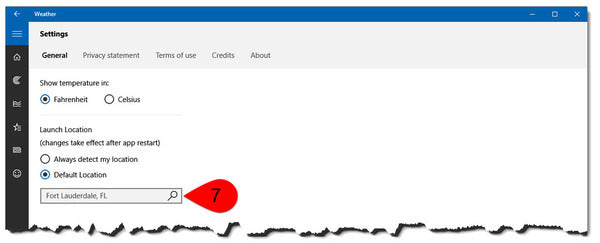
7. Verify your entry.

8. Exit the app and re-launch it.
You should now see your local weather and still be safe from prying eyes.
There are more trading computer tips like this in our buyers guide. Check out our "How To Buy a Trading Computer" e-book.
We hope today's Quick Tip helped you. If you found this helpful, you'll want to check out the other computer How-To's I've created
on this page. You can always call us if you have questions:
800-387-5250


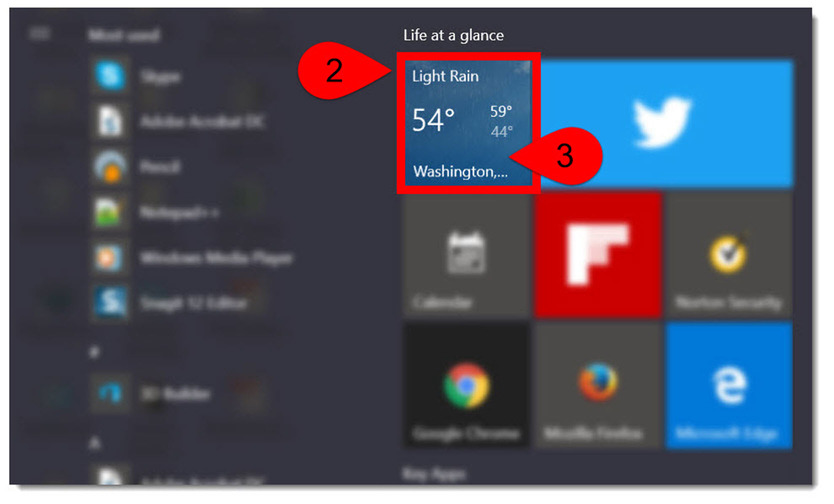 3. Click on the Weather tile to launch the set-up screen. (Note: Once you've done the set-up, you won't see this screen again.)


